
Download SyncBack – Free File Backup and Sync Tool
Overview
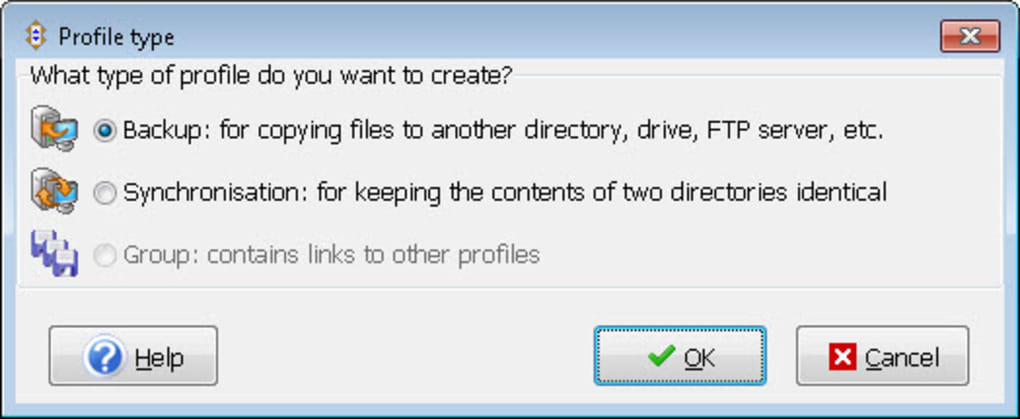
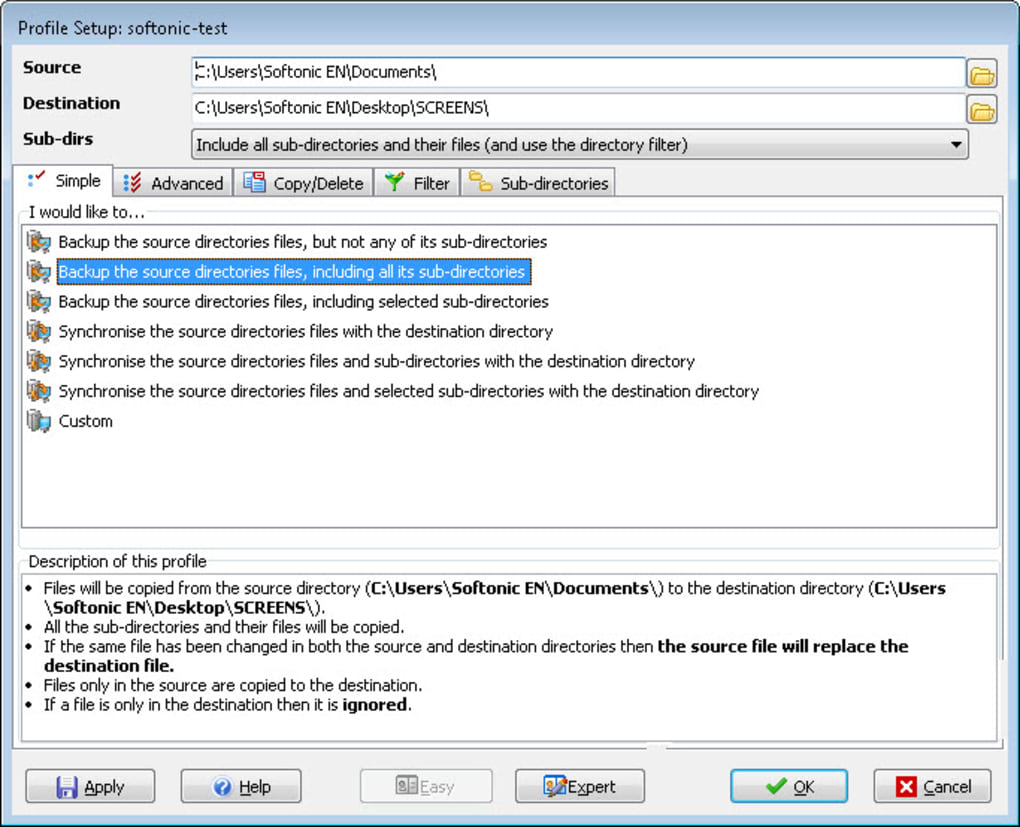
SyncBack is a lightweight, free backup and synchronization utility designed for Windows users who need a reliable way to protect their important documents without paying for a premium suite. The program follows a profile‑based workflow: you create a profile that defines what you want to achieve—whether that’s a one‑way backup, a two‑way sync, or a group of linked profiles for more complex scenarios. Once the profile is set up, SyncBack’s intuitive wizard guides you through source and destination selection, filter creation, and scheduling options.
Although the free edition lacks the advanced scripting and cloud‑integration features found in the paid SyncBack SE and Pro versions, it excels at the core tasks of copying files between local drives, external USB sticks, and network shares. The interface is straightforward, with clear icons and status bars that keep you informed about the progress of each job. Whether you’re moving files from a desktop to a laptop, keeping a mirrored folder on a NAS, or simply creating a dated backup of a project folder, SyncBack offers a secure, no‑frills solution that runs silently in the background.
Its portable version, available from the developer’s website, allows you to carry the tool on a USB stick and use it on any Windows computer without installation, making it an excellent choice for technicians and power users who travel frequently.
Key Features
- Three profile types – Backup, Synchronization, and Group – to cover most everyday scenarios.
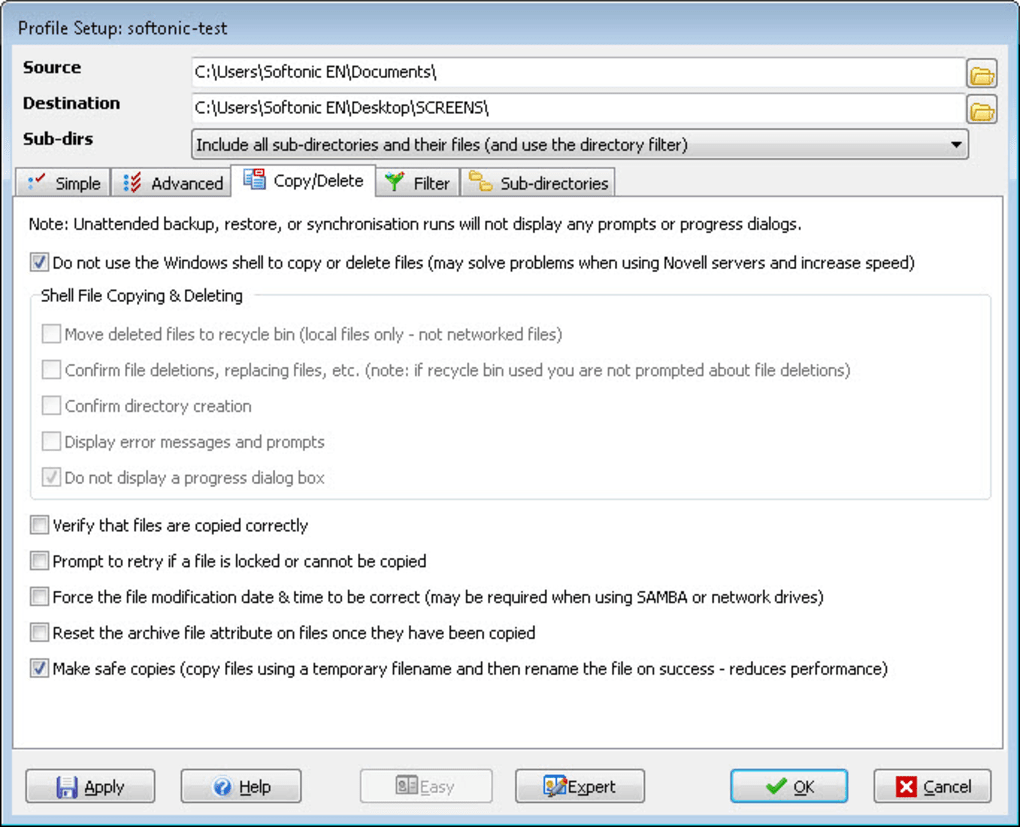
- Flexible file‑filter system that lets you include or exclude specific extensions, sizes, or date ranges.
- Support for local drives, external USB devices, and mapped network shares.
- Built‑in scheduling engine to automate routine backups at daily, weekly, or custom intervals.
- Detailed log files and real‑time progress indicators for complete transparency.
- Portable version that runs without installation, ideal for on‑the‑go usage.
- Free for personal and commercial use, with no hidden fees or mandatory upgrades.
- Simple, wizard‑driven configuration that requires no scripting knowledge.
These features combine to make SyncBack a solid entry point for users who want a free yet dependable tool for protecting data. The profile‑centric design ensures that each job is isolated, meaning you can have a “Daily Documents Backup” profile, a “Photos Sync” profile, and a “Project Group” profile all coexisting without interfering with one another. The filter system is especially handy for excluding temporary files, system caches, or large video files that you don’t need to duplicate. While power users may eventually migrate to the paid versions for compression or FTP support, the free edition provides more than enough capability for typical home or small‑office environments.
Installation, Usage & Compatibility
Getting started with SyncBack is as simple as downloading the installer from the official website. The download size is under 10 MB, and the installation wizard walks you through a typical Windows setup, asking only for the installation folder and whether you’d like a desktop shortcut. For those who prefer not to modify the system, the portable version can be extracted to any folder or USB drive and launched directly—no admin rights required.
Step‑by‑Step Installation
- Visit the official SyncBack download page and click the “Download Free” button.
- Run the
SyncBackSetup.exefile and follow the on‑screen prompts. - Choose between a standard installation or the portable zip package.
- Complete the wizard; the program will launch automatically after installation.
Creating Your First Profile
When SyncBack opens, you’ll see the “New Profile” button. Clicking it launches the profile wizard where you select the profile type. For a simple backup, choose “Backup,” then point the source folder (e.g., C:\Users\John\Documents) and the destination (e.g., an external drive E:\Backup\Documents). You can enable “Versioning” to keep multiple copies of changed files, and set up filters to ignore .tmp or .log files. After saving the profile, you can run it immediately or schedule it via the built‑in scheduler, which integrates with Windows Task Scheduler for reliable execution even when you’re not logged in.
SyncBack is designed exclusively for Microsoft Windows. It runs smoothly on Windows 10, Windows 11, and earlier versions such as Windows 7 and Windows 8 as long as the .NET Framework 4.5 or higher is installed. The portable edition works on any Windows machine without needing administrative privileges, making it ideal for IT support scenarios where installing software is restricted.
Overall, the installation process takes less than five minutes, and the first backup can be launched in under a minute for modest folder sizes. The UI remains responsive, and the program can be minimized to the system tray, allowing you to continue working while SyncBack processes files in the background.
Pros & Cons, FAQ & Conclusion
Pros
- Completely free for both personal and commercial use.
- Intuitive profile wizard eliminates steep learning curves.
- Portable version offers flexibility for on‑the‑go backups.
- Robust filtering and scheduling capabilities.
- Low system resource usage; runs quietly in the background.
Cons
- Lacks advanced cloud storage integration (e.g., OneDrive, Google Drive).
- No built‑in compression or encryption in the free edition.
- Feature set is limited compared to paid SyncBack SE/Pro.
- No native macOS or Linux support; Windows‑only.
Frequently Asked Questions
Is SyncBack truly free or does it have hidden costs?
SyncBack’s free edition is 100 % free for both personal and commercial use. There are no hidden fees, trial periods, or forced upgrades. Optional paid versions (SE and Pro) add advanced features, but they are completely separate products.
Can I use SyncBack to back up to a cloud service?
The free edition does not include native cloud connectors. However, you can map a cloud storage service (e.g., OneDrive or Google Drive) as a network drive and then point SyncBack’s destination to that drive. For direct cloud integration, consider upgrading to SyncBack SE or Pro.
Is the portable version safe to run on any Windows PC?
Yes. The portable version is a self‑contained zip file that requires no installation or admin rights. It runs from a USB stick or any folder, making it safe for use on locked‑down corporate machines where you cannot modify system files.
How does SyncBack handle file versioning?
In the free edition, you can enable simple versioning that keeps the most recent copy of a file and optionally retains the previous version with a timestamped suffix. This helps recover accidentally overwritten files without consuming excessive storage.
What Windows versions are supported?
SyncBack supports Windows 7, Windows 8/8.1, Windows 10, and Windows 11. The installer includes the necessary .NET Framework components for older systems, ensuring broad compatibility across most Windows environments.
Conclusion & Call to Action
SyncBack delivers exactly what its tagline promises: a simple, free, and secure way to back up and synchronize files on Windows. While power users may eventually outgrow its limited cloud and encryption features, the free edition remains a dependable choice for everyday backups, laptop‑to‑desktop syncs, and quick portable deployments. Its profile‑based approach, robust filtering, and low resource footprint make it especially appealing for small businesses and home users who want peace of mind without a subscription. If you’re ready to protect your data without spending a dime, click the button below to download the latest version of SyncBack and start creating your first backup profile today.